Requests Management > My Requests > Create / Edit Request:
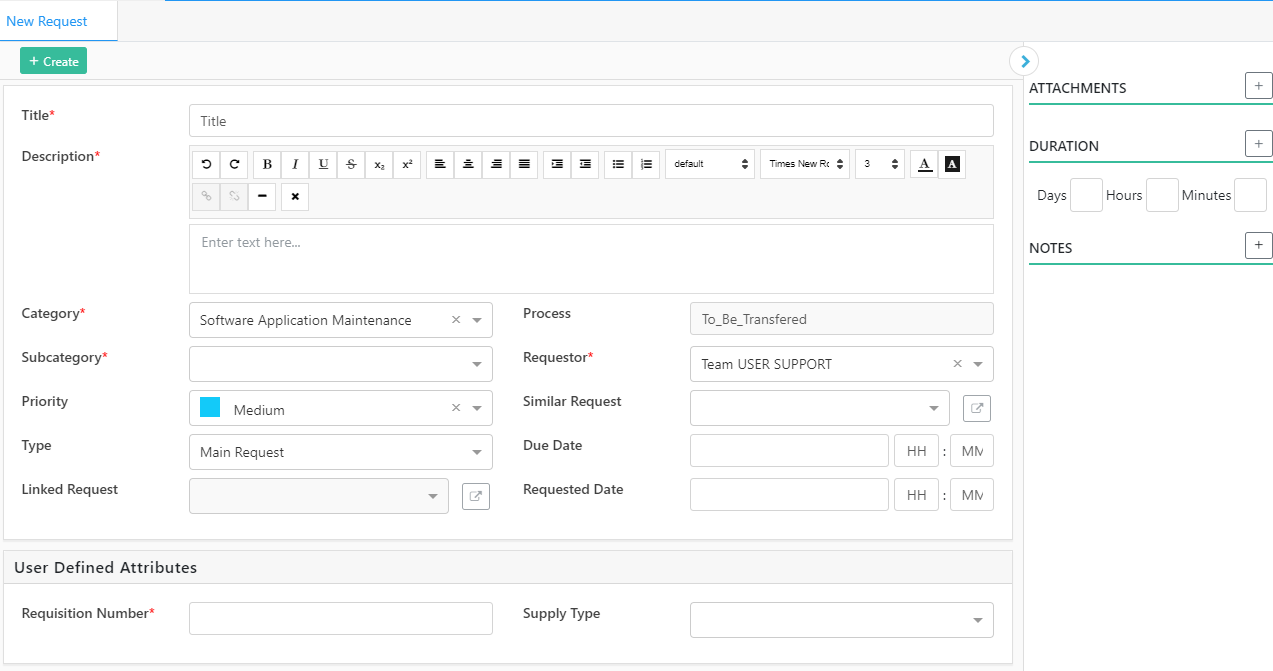
The Request Page consists of creating a new request or opening an existing one.
All details of the request are present on this page.
Enter a Title and a Description then fill all mandatory specific attributes and / or optional ones.
Fill the mandatory User Defined Attributes and / or the optional ones.
User can attach documents in the request.
User can add notes to the request.
User can add duration by entering the desired numbers in the duration fields under Duration then clicking on +. This duration defines the minimum time allowed before starting or claiming a request, it is predefined in the settings whether or not this option is activated.
Click on + Create to create the request => The request will appear under My Requests>
Open Request:
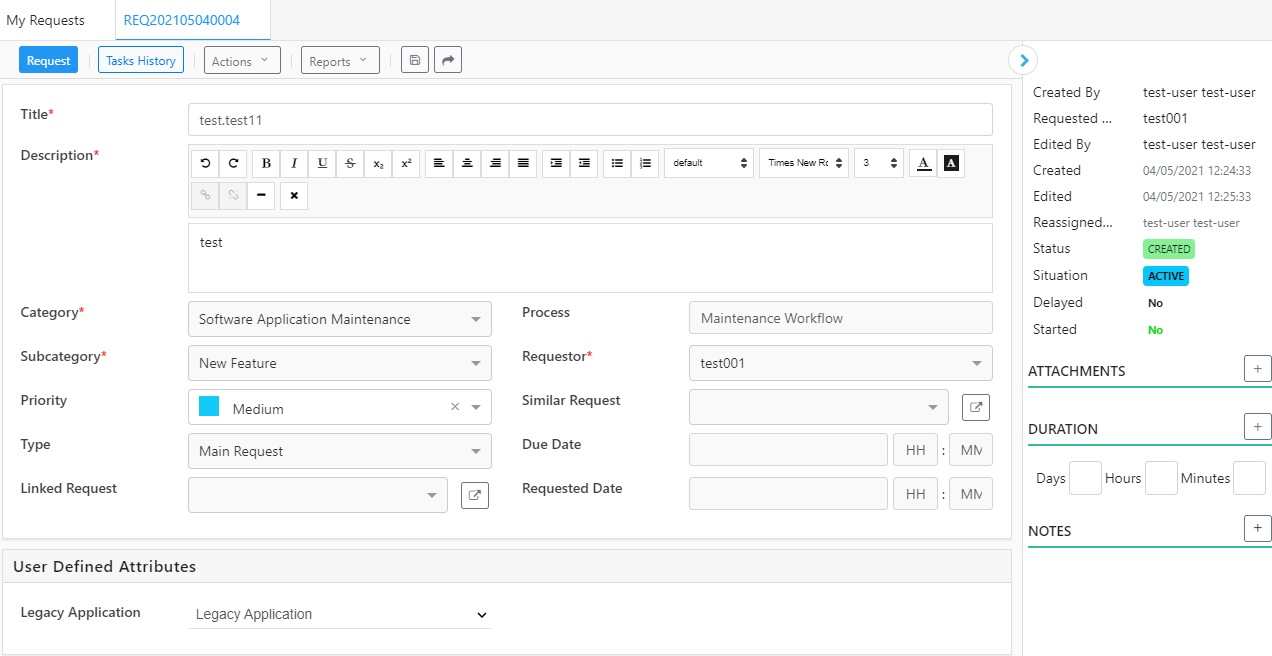
Go to Requests Management > My Requests > click on any request to open it
The page is sectioned into multiple tabs
All request details form title to description to attributes are present in this page. Depending on the permission, user can edit and save changes. Request detailed information can be found in the right pane. User can click on the + button next to Attachments and Notes to add any of them.
Actions
Depending on the permission, these action appear or not to the user.
Three main actions: Save, Transfer and Print.
Reports:
Multiple reports are available for the user.
Click on Reports and choose the desired report to generate it.
Save:
Depending on the permission, user can make changes to the existing request.
Some attributes are not editable regardless of the permission.
Once changes are made, click on Save in order to save.
Transfer:
This feature is to move the request from one category and sub-category to another. Click on Transfer, enter a Justification, choose a new Category and Sub-Category then click on Transfer. Click on Close in order to discard changes.
Tasks History:
Every completed step of the process is registered on this page, with the date, the holder, and any other attribute for this step.


 contact@evolusys.com