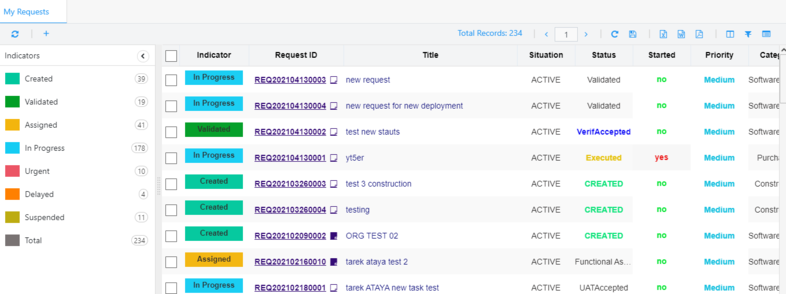
My Requests:
List of active requests when the user has permission to see and take an action on.
The My Requests list organizes and displays the active requests and provides multiple functionalities.
Also, a list of indicators is displayed on the left side of the page which can be collapsed. These indicators are previously created in the Dashboard.
To perform any action, the user must select one or multiple requests. The actions will be displayed on the toolbar depending on the permissions, the situation, and the status of the selected request(s):
Create New Request:
New Request tab is open to create a new request.
Delete Request:
The request is deleted from the request list and removed from the database. No history is recorded. User can delete a request at any time, if they have the permission to, regardless of its status and situation.
Stop Request:
User must enter a justification before stopping a request. The Status of the request becomes stopped, and the Situation changes from active to completed. All actions of the request holder will be disabled.
Shelve Request:
Has the same behavior of Stop request, but the Status will become shelved.
Suspend Request:
User must enter a justification before suspending a request. The request Status does not change. The Situation changes from active to suspended and all actions of the request holder are disabled.
Resume Request:
This option only appears on requests with Situation suspended. Once the user confirms the action, the Status of the request stays the same, its Situation changes to active and all actions become enabled to the holder.
Reassign Request:
This option is to change the holder of a task to another holder. Nothing changes except the holder.
Reopen Request:
This option appears on requests with Status closed. The Status changes to the previous status of the request before closing it depending on the workflow. The Situation changes from completed to active.
Grid Toolbar:
Total Records: represents the total number of records available in the My Requests page
Page Number: represents the number of the current page. User can navigate by going to the previous or next page.
Reset Layout: User can always reset to the default layout after resizing and replacing and hide / show the columns.
Save Layout: User can save the layout after resizing and replacing and hide / show the columns.
Export to EXCEL: User can export to Excel all records, current view or choose from - to index.
Export to WORD: User can export to Word all records, current view or choose from - to index.
Export to PDF: User can export to PDF all records, current view or choose from - to index.
Auto-fit Columns: This feature fits all columns in the page without having to scroll horizontally to view them.
Remove Filters: This feature removes all filters on all columns at the same time.
Show / Hide Columns: User can show / hide columns to the My Requests list.
Refresh Grid: When clicked, the data of the entire list is refreshed.
Column Features:
Hover over the title of any column, and click on the 3 horizontal lines that appear on the right.
User can Sort Ascending, Descending or Remove Sort.
User can filter the column by choosing from the simple list or complex filter depending on the column.
Click on any column and drag it to change its positioning. The first 3 columns and static and fixed.
Click on the Request ID to open the request.


 contact@evolusys.com