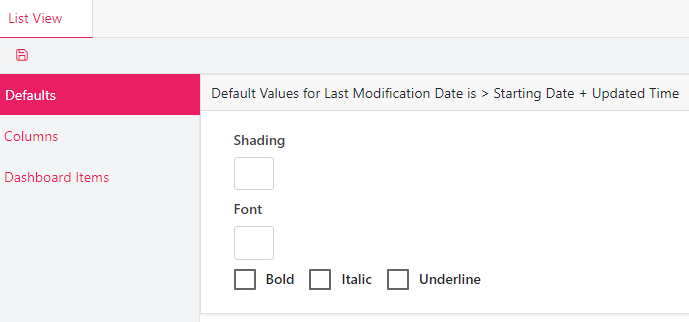
Choose the shading and font colors of the request text, along with the fonts (bold, italic, underline).
Click on the box under Shading or Font to choose a color.
Check / Uncheck the font boxes as desired.
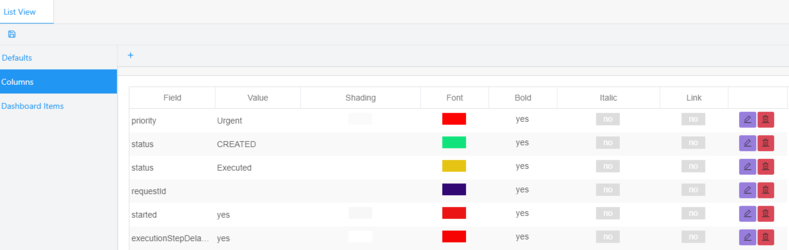
Columns:
Choose shading and fonts for each column of the request list:
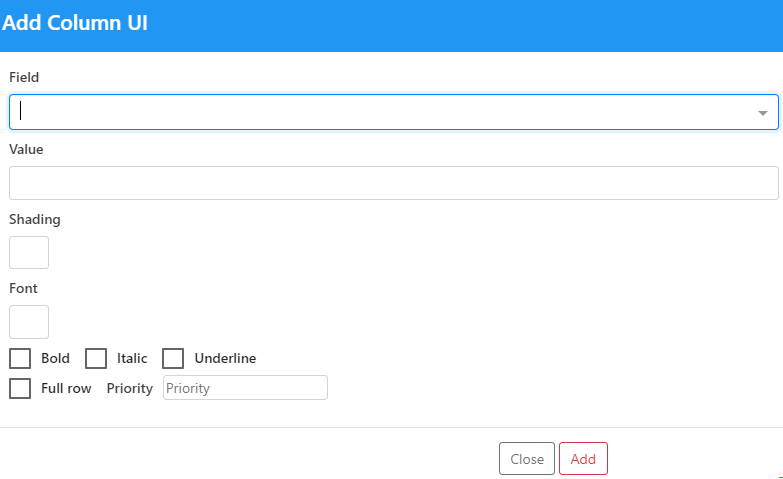
Click on the + button to add a field > Choose a field from the list > Enter a value > Choose the shading and font colors / options desired then click Add to add the field to the list or Close to discard changes along with the fonts (bold, italic, underline) , the whole row in the request list will be colored if the full row checkbox cheeked.
Click on the Edit button to edit the field.
Click on the Delete button to delete the field.
Dashboard Items:
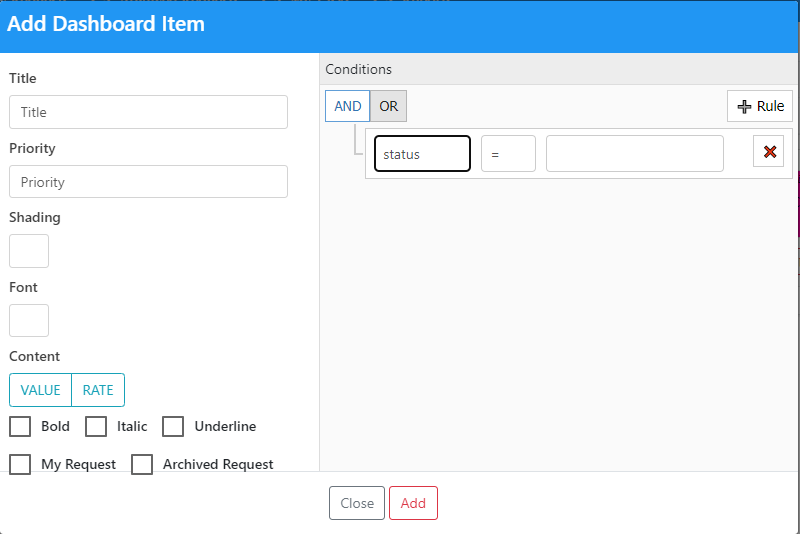
User chooses the fields to be displayed in the dashboard of the request list for quick access.
Click on the + button to add a new dashboard item > Enter all necessary fields then create a rule under conditions > also choose where to display the created dashboard by checking MY request or archived Request:
Click Add to add the new item or Close to discard changes the dashboard items will display as following :
Click on the edit button to edit an item.
Click on the delete button to delete an item.
To save the attribute selection click on save button at the right of the page.


 contact@evolusys.com