REQSMGMT Categories-Subcategories
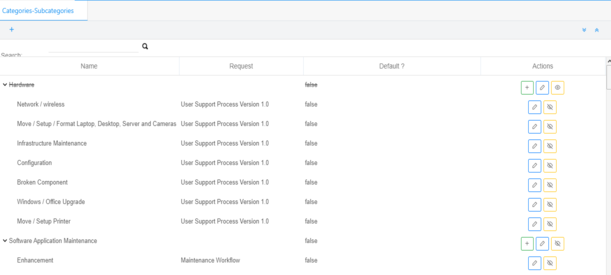
Settings > Categories-Subcategories:
In Request Management module, requests are classified according to categories and subcategories.
Each Category has a number of subcategories that are linked to processes.
The link between sub-category and process determines the path of the request (task by task).
Create Category:
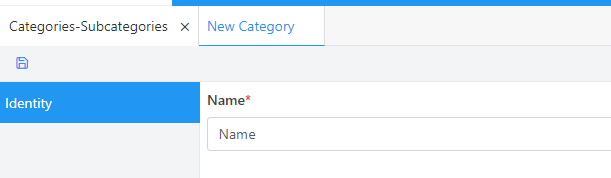
Click on the + button, add the name of the category.
Click on the save button > the tab closes and the attribute is added to the main list.
Create Subcategory:
Select the created category and click the + button:
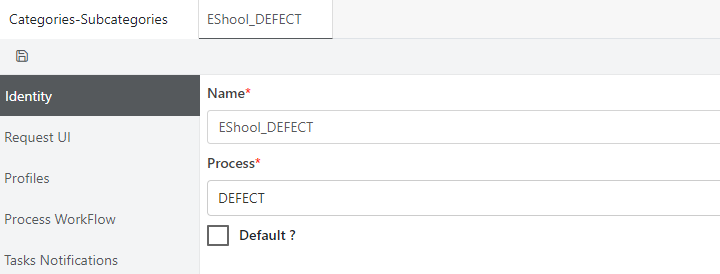
The following tab will open:
Subcategory Identity:
Type the name of the subcategory.
Select the process to be linked to this subcategory.
Default if selected than the subcategory will be display in the request page.
Click on save button , the subcategory is created.
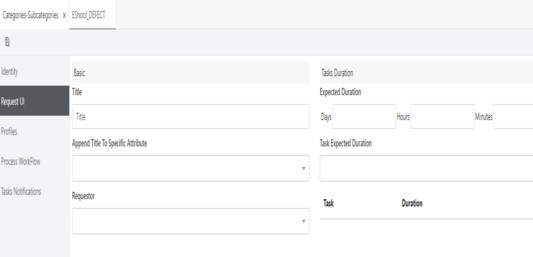
Subcategory Request UI:
Title: add a specific title to be display all the time when this Subcategory is selected at level request creation.
Append title: when the user is creating a request the entered title will be added in the selected attributes.
Requestor: select team member from list of user to be display all level request creation.
Request Duration: add the days, hours and minutes for the request Duration, all the request related to this subcategory, will delayed based on this duration.
Task Expected duration: select a task from drop down and add the duration add the days, hours and minutes for the Task Duration all the Tasks related to this subcategory will delayed based on this duration.
After entering all the configuration Click on the save button on the top left of the tab tosave all changes on the Request UI section.
Subcategory Profiles:
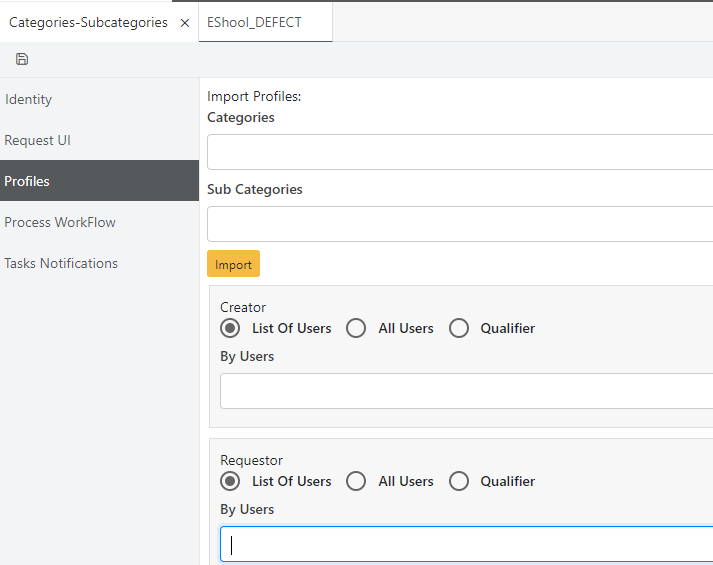
On each subcategory all the added profiles on the selected process will be added in the profile section.
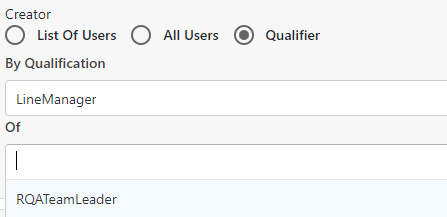
User Profile can be added with two options: Import (select category, subcategory and click on import button the system will import all the users with the same profile) or Manually Added: three ways to add user profile manually:
List of users:
If the list of users is checked, select the users from drop down list and added to the profile
Multi users can be added to each profile.
All users:
If selected, all users in the company will be added to the profile.
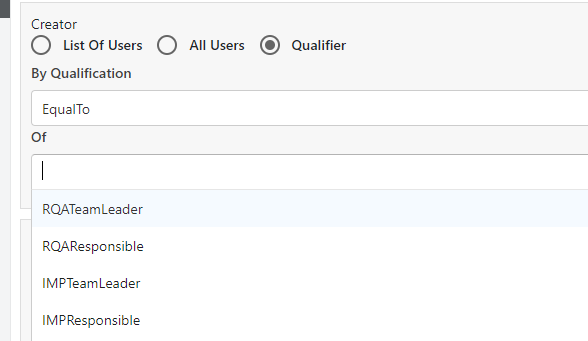
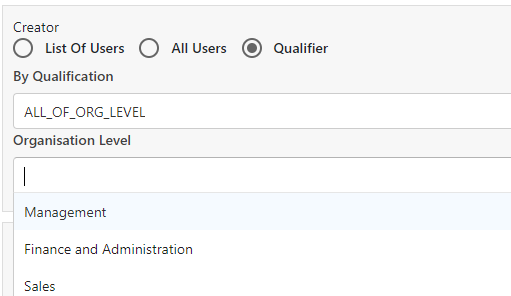
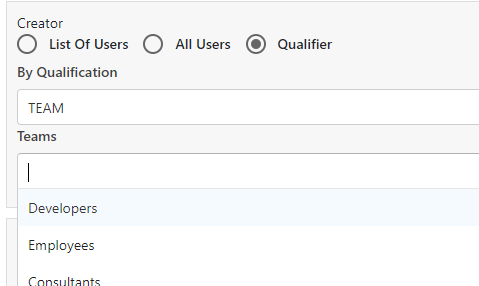
Qualifier:
=> Equal to: user can add a profile equal to another profile
=> Organizational Chart: select one of the predefined org chart of the company
=> Team : select the team and then choose which team to be used in the profile
=> Line Manger: select the line manager and then choose the profile


 contact@evolusys.com