REQSMGMT User-Defined Attributes
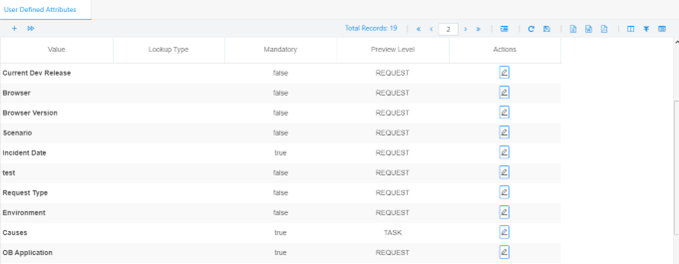
Settings > User-Defined Attributes:
Users can define their own attributes to be displayed on the request or task level.
Click on the + button to add a new specific attribute
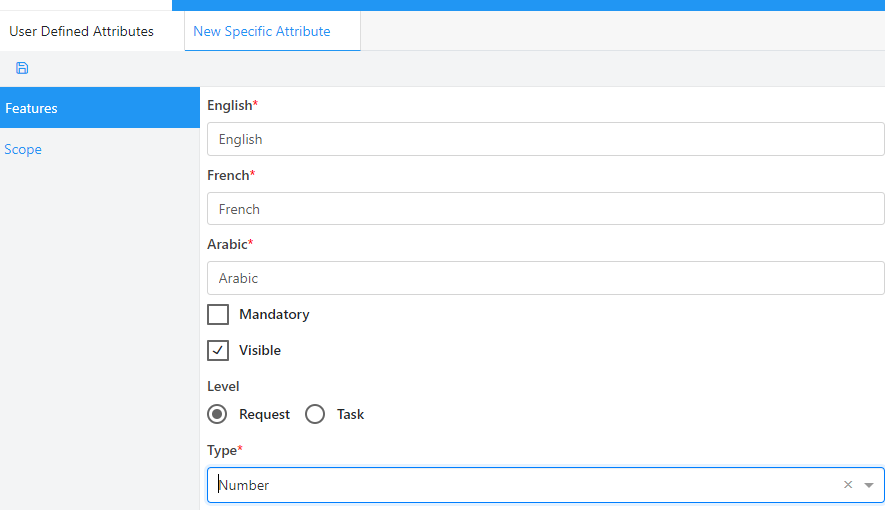
In the New Specific Attribute tab that opens, enter / choose the desired values if the selected type is not a dropdown or tree the following screen will open:
Features:
Choose mandatory and visible.
Select the way to display the attribute at level request or task.
Click on the save button > the tab closes and the attribute is added to the main list.
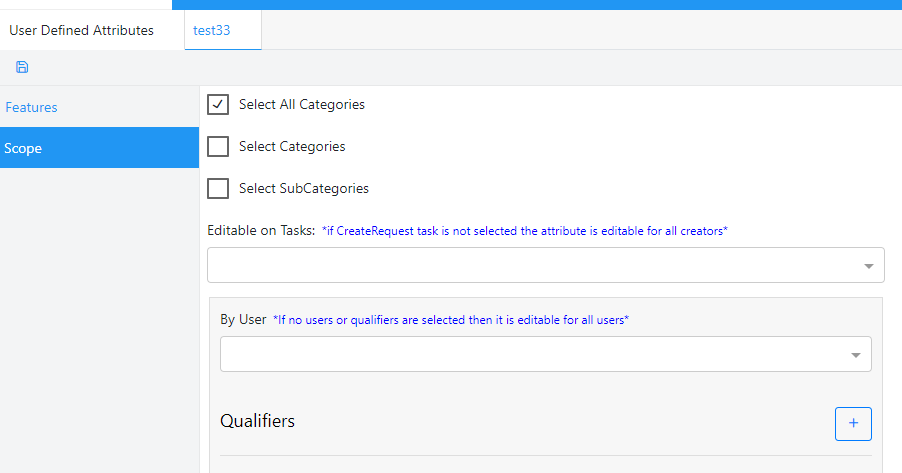
Scope:
Display the attributes by select category, subcategory or all category.
Select a task that the attribute can be edit.
Select the user how can edit the selected task.
Click on the save button > the tab closes and the attribute is added to the main list.
Click on the + button to add a new specific attribute.
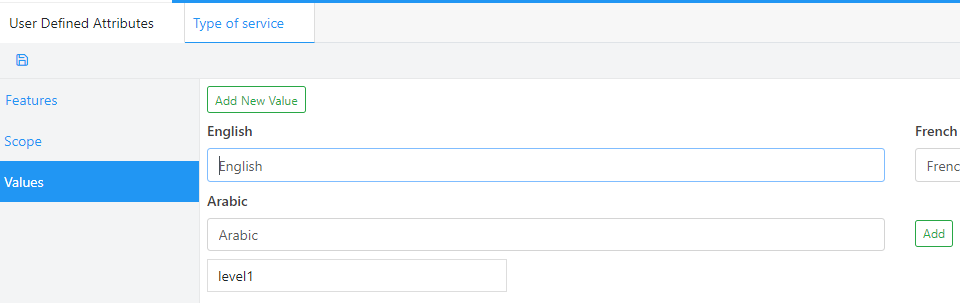
In the New Specific Attribute tab that opens, enter / choose the desired values if the selected type is a drop down the following screen will open:
Values:
Click on add new value and add the value to be display in the drop down.
Click on the save button > the tab closes and the attribute is added to the main list.
Click on the + button to add a new specific attribute
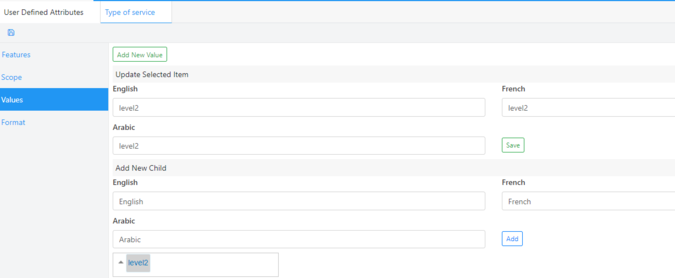
In the New Specific Attribute tab that opens, enter / choose the desired values if the selected type is a Tree the following screen will open:
Click on add new value and add the first level in the tree
Select the created level and click on add new child to be linked to his parent
Click on the save button > the tab closes and the attribute is added to the main list
When the type of attribute is tree, the display of it can be done with two different views as flowing:
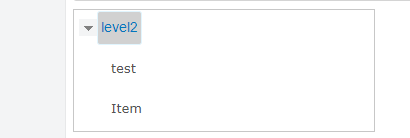
Normal Tree: the root level and it is children :
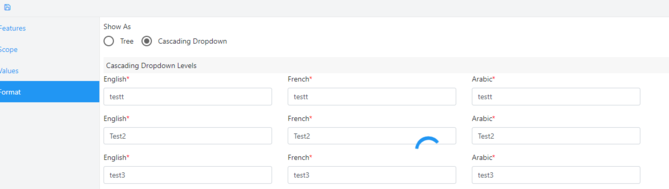
Cascading Tree:
Each level will be saved in a drop down select the first level the second level will be filtered based on the selection of first level


 contact@evolusys.com