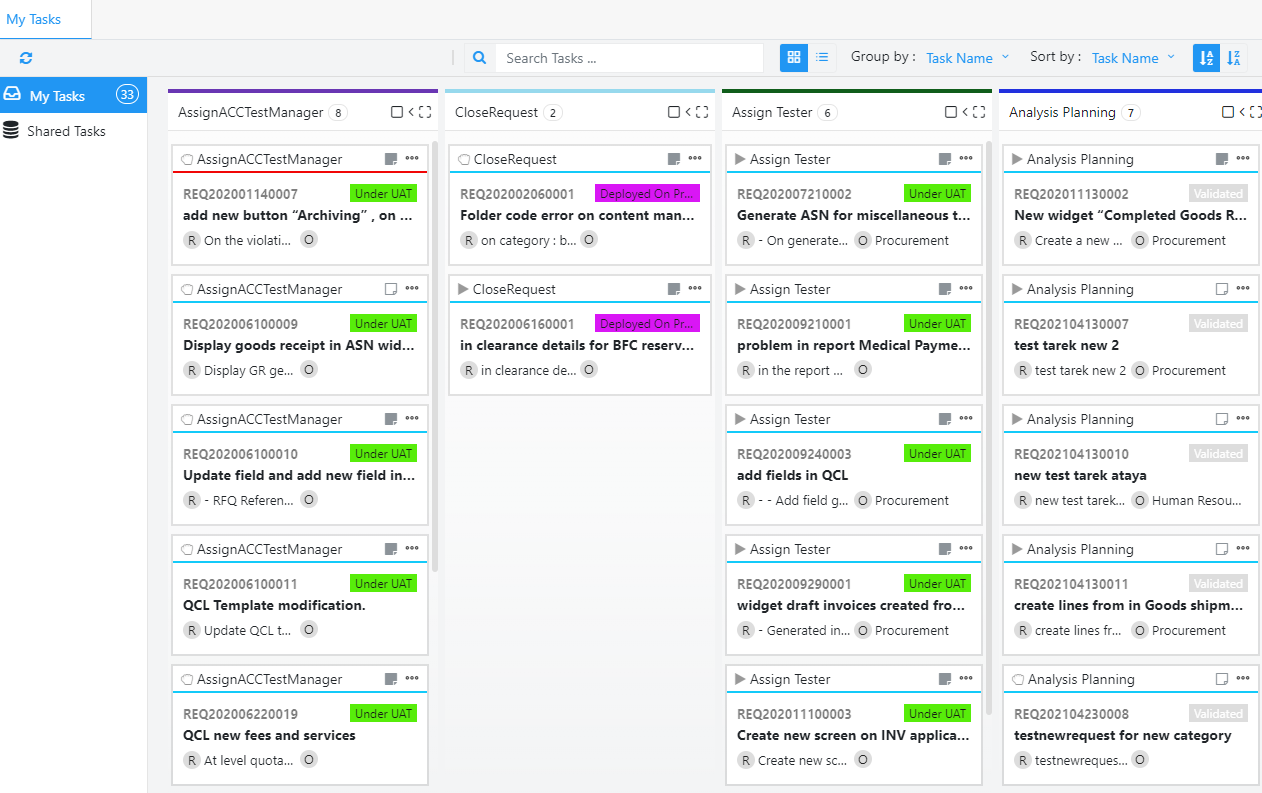
Requests Management > My Tasks:
This is where all the tasks of the user are displayed.
Depending on the permission, user also can see the shared tasks and other users’ tasks.
My Tasks:
This is a display of all the tasks assigned to the logged in user. These tasks are ready to be started.
Shared Tasks:
This is a display of all the tasks that can be assigned to multiple users. The tasks appear on all the concerned users’ screens. Only one user can claim the task by clicking on the Claim button. Once claimed, the task will move from Shared Tasks to My Tasks and is now ready to be started.
Tasks Actions:
Refresh:
This refreshes the data and all tasks are updated.
Start:
Select one or multiple tasks then choose Start. The task (s) will become started.
Select / Deselect all:
This button only appears if the Group by is none.
User can select / deselect all tasks at the same time in order to perform an action.
Release:
Select one or multiple tasks and click on Release, then click OK on the confirmation message.
The user will no longer be the holder on the released task (s) which will be moved to the Shared Tasks.
Undo:
Select one or multiple tasks and click on Undo, then click Undo on the confirmation message that appears.
The task will revert back to the previous one.
Complete:
Select a task and click on complete to finish the task and move to the next one.
The task will then appear in the My Tasks of the corresponding user or in the Shared Tasks of the respective users.
To complete multiple tasks, user must Group by Task Name.
The Plan and End Implementation tasks must be individually completed.
Reassign:
Depending on the permission, user can reassign the task to another user who becomes the holder of this task.
Menu Toolbar:
Search:
To search for a task, enter any clue that appears on the task card and the cards are filtered accordingly.
Card / List layout:
Click on Card / List layout to change the layout display of the tasks.
Group by:
User can choose to group by the predefined options or None.
Sort by:
User can choose to sort by the predefined options or None.
Ascending / Descending:
If the Sort by is Recent, clicking this option displays the card from old to new or vice versa.
Task Cards:
Column actions can only be performed when tasks are grouped by an attribute.
User can Select All cards in the column, Collapse and Maximize the column.
The number of cards in each column is displayed next to the title of the column.
User can select one or multiple cards by hovering over the title and clicking on the circle that appears.
User can add and read notes by clicking on the note icon in the title.
Hovering over the note icon displays the number of notes available on this card.
Clicking on the 3 dots in the title displays the list of actions that can performed on the card.
This list appears in the menu toolbar when the card is selected.


 contact@evolusys.com