ATTMGMT Submit Attendance
Attendance => Attendance View:
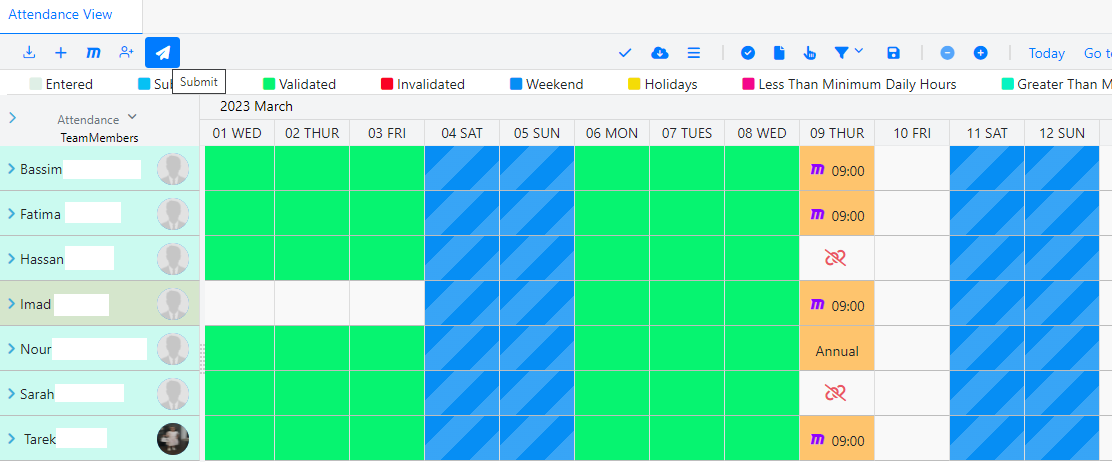
This section presents all attendance data detailed and ready to be submitted.
The records are under status entered, and after all the needed modification for all records (fix corrupted data, change absence type, add mission).
The data is ready to be submitted by clicking the button submit.
After import the attendance record the responsible user will do the following steps before submit the data:
Fix corrupted data:
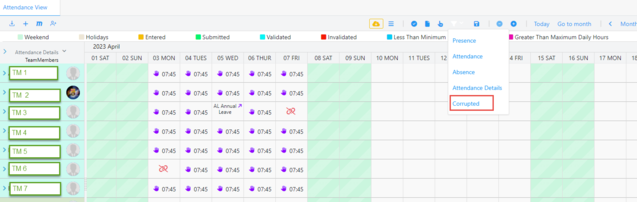
After importing the file there are some team members will miss to finger print there in or out so the data will be corrupted when imported, the user will filter the data by corrupted and will fix all the data:
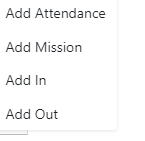
After filtering the data the user will start fixing the data by adding (in , out , delete , record , add attendance, or add mission:
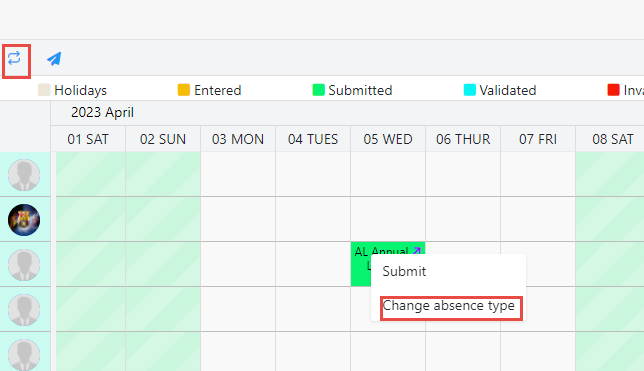
Also when the data imported some team members don’t have attendance the system will display be default the annual leave balance, user go the absence view and select the team member in order to change the absence type if different from annual as following:
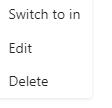
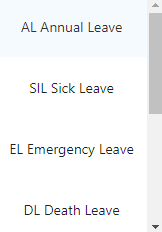
To change the absence type you can click on the cell directly by the right mouse and click (change abs type or you go up on the left and click the button to change the absence type). Click on the cell by the right mouse: the following dialog will open:
User choose the absence type and click on it the absence type will be changed .
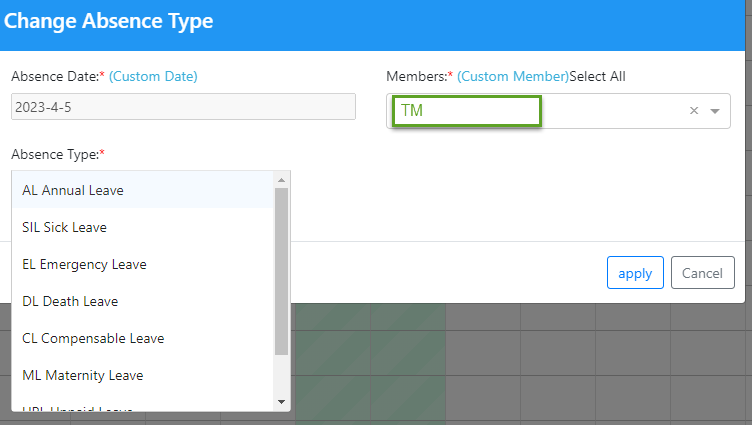
Click the button on the top: the following dialog will open:
User clicks on the cell the dialog will open with name and date of the selected team members.
Choose the desired absence type and click on apply.
The absence type will be changed and saved.
When all the attendance and absence are correct, the data become ready to be submitted.
Submit attendance:
User can select team member, date, all team members, or all dates.
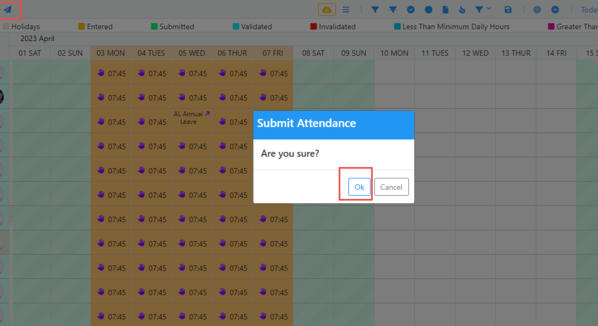
User clicks on submit button => the data will be submitted and ready to be validated:
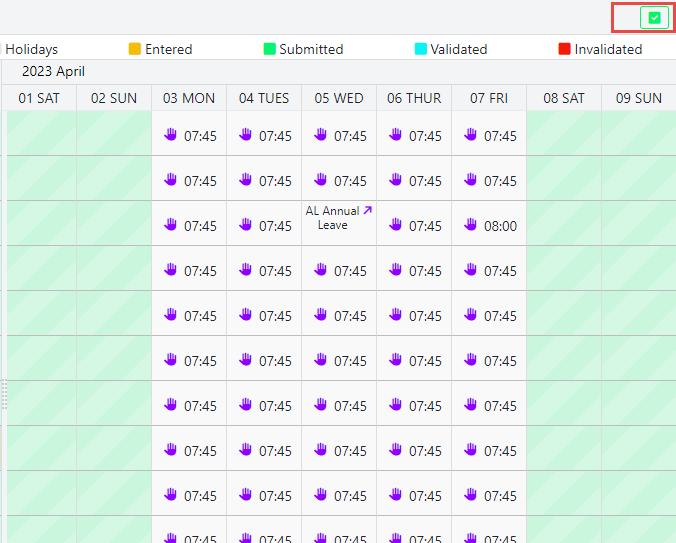
User clicks on the (OK) button => the data will be submitted and saved in new view called submitted data as following:
The icon on the left top of the screen indicate that this the view of the submitted data.


 contact@evolusys.com