Attendance => Attendance View:
In this section, the user can edit a validated attendance for any corrections.
This step happens after the validation is done and for only last validated month and current month included all the validated weeks. The validated view can be available only for the last validated month and the current months only.
The user who makes the amendment has to have the permission to be able to make this action.
Go to validated data in the validated view screen and make the amendment as following:
Modify attendance:
Select an employee from a the attendance view and go to the record in or out and click by the right mouse the following dialog will open:
If the data added manually or mission the delete button appear:
If the data is imported the deactivate button appear:
Modify attendance:
Make the modification for the selected employee by updating hours on in or out and then click on update button.
The data is modified now and new duration to this date is added.
Delete attendance:
If the data is entered manually or mission make the deletion and click on delete button the in and out record will be deleted and annual leave is added instead.
If the selected team member has balance else unpaid leave is added.
Deactivate attendance:
Same behavior as delete.
Add Attendance and mission:
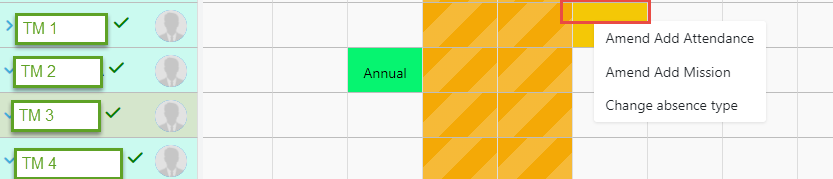
Select an employee from a the attendance view and go to the above of the record and click on it the following dialog will open :
Add attendance:
Click on amend add attendance, the attendance dialog will open with the date, in and out, add in and out and then click on add button the new attendance is added now.
Make sure no overlapping with the existing attendance.
Add Mission :
Same behavior of the add attendance but you click on the amend add mission instead of amend add attendance.
Change absence Type :
Go to Absence screen view and select the absence related to an employee and click the right mouse the following dialog will open :
Change Absence Type:
If user click on change absence type the dialog of absence type will open to select an absence when selected the absence type is updated, take into consideration the balance of both absence to be updated also either by added the deducted hours form the old one and deduct the hours from the new one.
If no balance available for both type then only update absence.
Add attendance:
Click on amend add attendance the attendance dialog will open with the date, in and out, add in and out and then click on add button the new attendance is added now, and the absence is deleted make sure to update the balance of the leave id has balance.
Add Mission:
Same behavior of add attendance.


 contact@evolusys.com