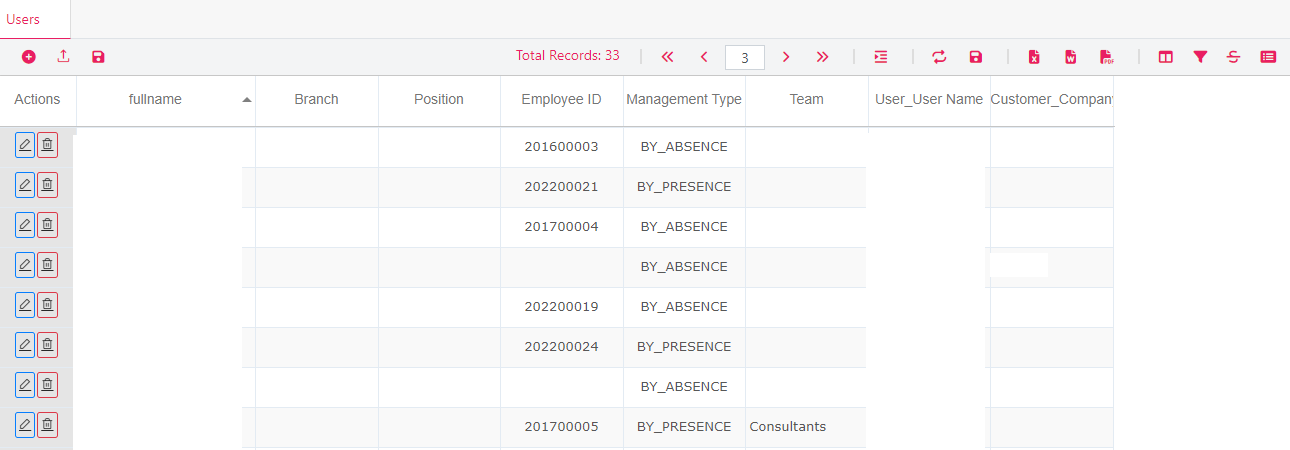
Users settings allow the management of users' profiles and permissions.
Each user has personal details, authorizations (permissions), authentication (user name, password), Filters, etc.
All users of the company are listed in this section and every user has their own file.
Search User:
To search for a user in the list:
hover over the field to search by.
click on "three dashes" that appears over the field.
click on sort ascending or descending to change the sort of users.
fill the Contains fields then click on Filter.
users related to the applied filtered appear in the list.
clear the filter by clicking on the Clear button.
Create User:
There are 2 ways to add users:
1) Import from Active Directory:
Click on Import Active Directory in the toolbar.
Search for the intended user and click Import.
Choose Select All and click Import to import all available users.
2) Add User:
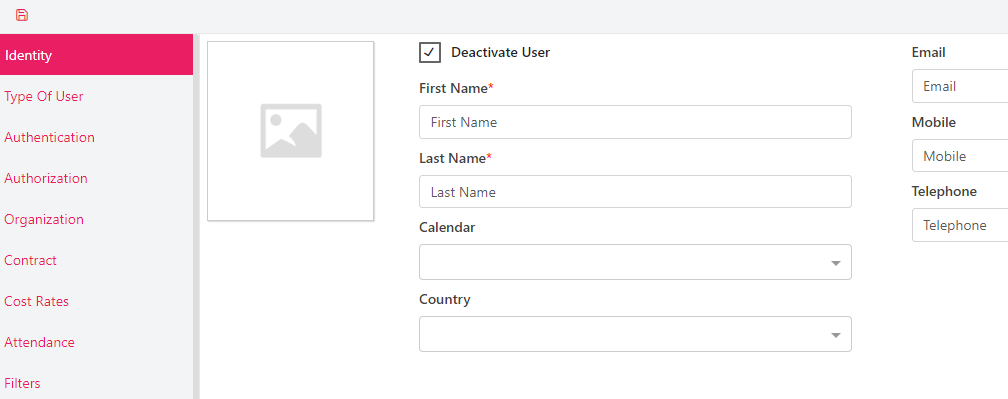
Click on the + button in the toolbar > a new New Member tab will open :
Identity:
Fill all mandatory and / or optional fields.
Click on Customer Based and choose a customer from the drop down list.
Upload / Delete image.
Authentication:
Fill all authentication mandatory fields
Authorization:
Choose Roles.
Choose the desired view Hierarchical or Flat.
Organization
Fill all mandatory and / or optional fields from the drop down lists.
Enter the Employee ID.
Contract:
Choose the Contract Type from the drop down list.
Choose the Begin / Departure Dates from the date picker.
Cost Rates:
Enter the Hourly Cost and the Overtime Hourly Cost.
Attendance:
Initially imported form attendance general settings.
Any field can be manually modified.
Filters:
In this section we filter the access rights per user for 2 modules: Planning and Tracking and Request Management
Planning and Tracking
Choose the Projects Domains.
Choose the Projects.
Request Management
Choose the Categories.
Choose the Sub-Categories.
Save:
Click on the save button > a popup message will display User is created
Edit User:
To edit a user click on the edit button under Actions, modify fields from any tab then click save
Delete User:
To delete a user click on the delete button under Actions then confirm.
User will not be deleted if linked to other entities in the product.


 contact@evolusys.com