All the operation of attendance business of all Team members with their IN and OUT details.
Leave management, missions, and exceptions will be done in this component.
Team members with management type (By Presence) and begin date with the same month will be retrieved when the attendance view sub menu is clicked:
This section is dependent on the settings set by the user in the Attendance Management Settings.
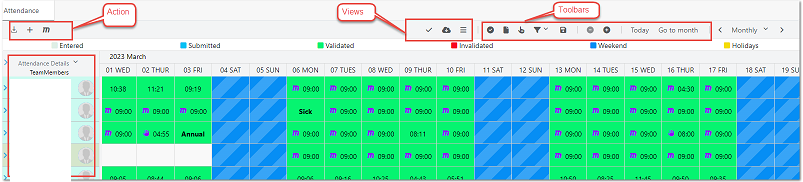
The attendance view component is designed as following:
Team members are displayed as rows.
Dates are displayed as columns.
Component is designed for one month.
The user can navigate with months.
This view is divided into Four sections :
Actions.
Toolbars.
Team Member management.
Attendance views.
Actions :
All the attendance actions are available on the top left of the screen:
Import Attendance.
Add Attendance Manually.
Add Mission.
Add Exceptions.
Delete Imported Data.
Import Attendance:
This section is dependent on the settings set by the user in the Attendance Management.
Once imported, the data is generated from the file in a log as following:
Added:
All team members that have correct data.
Duplicate:
One of the team members has duplicate record same in and out.
Errors:
All the team members that have problem in date, begin date, or leave date.
Action: Import Attendance data:
Imported data will be inserted in the database.
Action: Cancel Import:
Imported data will be canceled.
Add Attendance Manually:
User can add attendance manually with different scenarios :
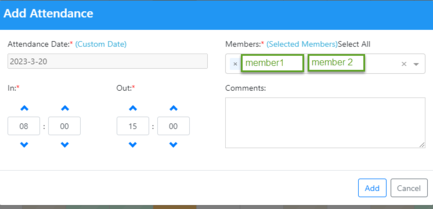
=> Selecting a date and click on the (+) button: the dialog will open with selected date, the user has to select one or more then the members and then add the in and out and click on Add button the new attendance will display in the attendance view with the icon Hand.
=> Selecting a team members and click on (+) button: the dialog will open with the selected team members , the user has to select the date and then add the in and out and click on Add Button the new attendance will display in the attendance view with the icon Hand.
=> Selecting a cell and click on (+) button: the dialog will open with the selected date and team member , the user has to select the date and then add the in and out and click on Add Button the new attendance will display in the attendance view with the icon Hand.
Add Mission:
User can add attendance manually with different scenarios :
=> Selecting a date and click on the (m): the dialog will open with selected date , the user has to select one or more then the members and then add the in and out , location , objective and click on Add button the new attendance will display in the attendance view with the letter m.
=> Selecting a team members and click on (+) button: the dialog will open with the selected team members , the user has to select the date and then add the in and out and click on Add Button the new attendance will display in the attendance view with the letter m.
=> Selecting a cell and click on (+) button: the dialog will open with the selected date and team member , the user has to select the date and then add the in and out and click on Add Button the new attendance will display in the attendance view with the letter m
Attendance View Components:
Displayed with the total number of IN and OUT
IN and OUT represent the number of wrong data (missing IN/OUT or additional IN/OUT).
User can take an Action on any unpleasant corrupted data.
Imported form file: this data was imported / updated from file.
No Action: user can decide not to take any action.
Set Zero Duration: user can decide to set 0 the wrong duration.
Remove Attendance: user can remove this day from the attendance.
Click on Save: changes are saved.
Click on Expand / Collapse view: the view is changed as desired.
Click on Full screen: Full screen mode is activated.
User can filter by colors, which represents attendance states (validated, submitted…).
User can filter by submitted data:
User can filter by validated data:
User can filter by all statuses:
User can select all team members:
User can select one or multiple team members with or without date filtering:
User can filter by presence, absence, attendance, attendance details:
User can adjust column width:
User can save layout after filtering and then when user access the same page again, the same view will be visible to the user:
User can import attendance from a file:
User can manually add attendance to a user by selecting the user and clicking on add attendance:
User can manually add attendance to multiple users by selecting more than one user and clicking the add attendance button:
User can add a mission by entering mission date, in and out, selecting the members, choosing the mission location and objective from the drop down lists:
User can add an exception for an employee that will have effect on all working days or user click on custom date and choose the date that the exception will take place it will show under attendance => exceptions:
This page shows the list of all exceptions added per user with the date and all the details.
User can edit or delete an exception.
User can add exceptions.
User can add multi exceptions.
User can save exceptions.
Absences:
Planned absences:
When user click on add absence add absence page opens:
User can choose team member.
User can choose type.
When user choose start and end date as the same day the start absence time field will become non-editable.
User can enter end of absence time
When calculate hour is clicked it calculates and shows the total number of absent hours .
User click on add confirmation pop up appears:
User confirms the absence:
User can choose team member.
User can choose type.
When user choose start and end date as different days the start absence time and end absence time will be editable.
When calculate hour is clicked it calculates and shows the total number of absent hours.
User click on add and absence confirmation pop up appears.
User can choose start or end date date to be all day:
When user click on edit absence button edit absence page opens:
Editable fields are team member, type, and all day check boxes, start and end absence time.
When user click on delete the delete absence pop up appears and user can confirm.
Absence request:
Validate absence:
In this, page all the absence requests submitted by team members’ shows for manger to be able to validate reject:
User can select a request:
User can leave a note and either validate or reject a request:
Mission:
Planned mission
Mission request
Validate mission
Reports => Attendance Daily Report:
This page can generate an attendance report based on the date specified by the user, team and members
When user click on generate report a PDF is downloaded with multiple reports each for a team member having all his attendance details for the dates specified
Reports => Yearly Absence Report:
This page can generate absence report based on the year specified by the user, one or more teams and members
When generate report is clicked a report is downloaded showing team members annual balances, taken annuals and their remaining annual balances.
Reports => Absence Report:
The user can choose one or more team members in this page to see their absence history.
When user click on generate report:
Absence details report page opens showing the history of absence for the chosen team member with all its details.
Reports => Attendance monthly Report:
This page can generate attendance report per month for the selected year and specified teams and members.
User can choose to generate the report according to status submitted or invoiced.
When user choose status submitted, user has the option to choose to show total hours attended per week or no.
When user click on generate report a PDF or excel file is downloaded showing the attendance for the team according to the options selected by user.
Reports => Attendance monthly history:
This user can choose one or more team member in this page to view his monthly attendance report.
When user click on generate report the page monthly attendance report opens showing the employees
Attendance according to the year and moth chosen.


 contact@evolusys.com