An activity report is a record of the amount of times an employee has spent at work, on a particular job or project.
This information could be recorded on paper, a spread sheet or software system such as our activity report module.
By keeping track of the time an employee starts and finishes his / her work, as well as any breaks they have taken.
A validation process (from the company or defined for a project) will be applied to each AR (Activity Report) based on the following tasks: the team member submit his AR which is validated (or invalidated) by one or many other team members (as project manager or team leaders).
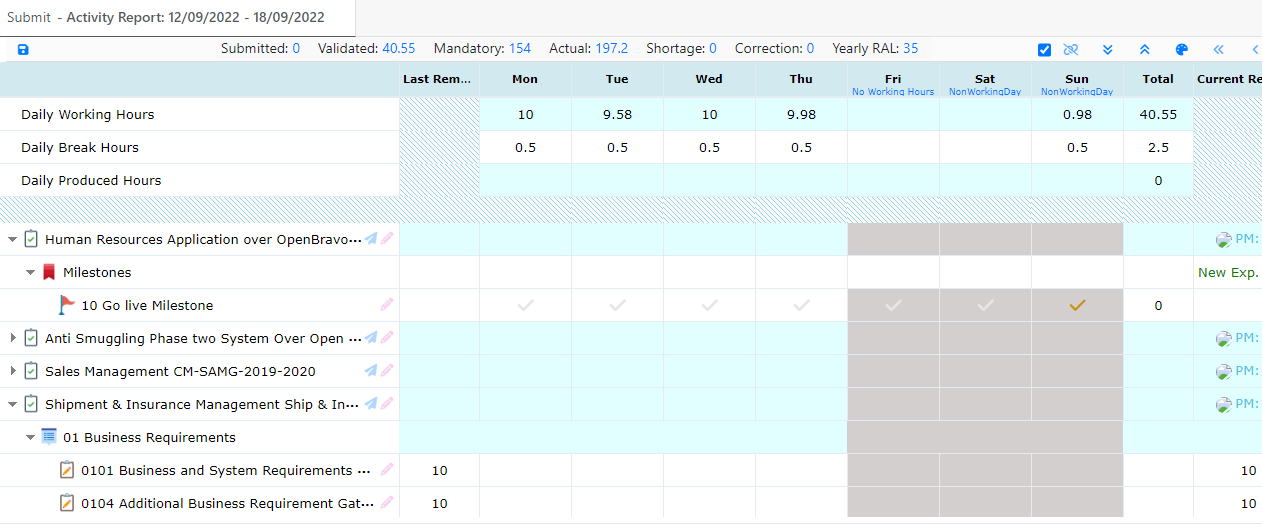
Activity Report submission process is the process of submitting the team member’s activity report. On weekly bases, the team member has to submit his report to the designated project manager in order to track the member’s progress on tasks. The team members activity report derive his daily attendance from the attendance module and forecast it showing his daily working hours and daily breaks.
All the projects with their levels and tasks the team member is part of shows in his activity report.
When there is no produced hours logged on a task => last remaining and current remaining for this task are the same.
The team member can fill his daily produced hours on each of his tasks.
Team member can submit his activity report based on either validated or submitted attendance.
Each activity report status has its own color, shading, font and style.
Remaining hours can be adjusted when its zero based on the settings set in settings => PLANTRACK Settings => remaining hours.
Team member can leave a comment on both tasks and levels.
My Time Sheets => Submit
The activity report submit page shows as follow showing all the team member attendance information on the top of the screen the projects with their hierarchy and the designated project manager:
Color status shows the different colors defined for the different statuses the colors and style of each status in the activity report is set in the activity report settings => activity report status.
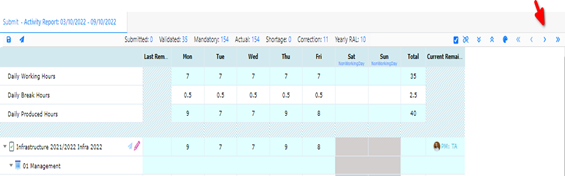
Arrows shows the previous and upcoming weeks:
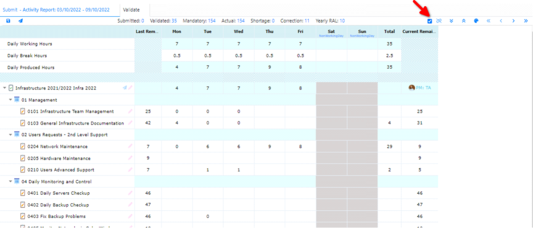
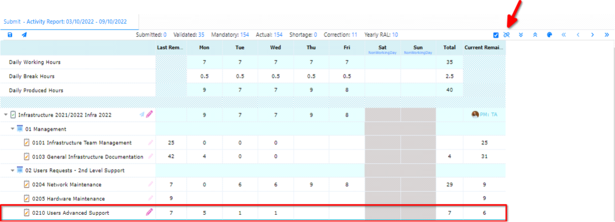
Expand all expands the activity report showing the entire hierarchy:
Show task levels expands the activity report and shows each task under its correspondent level:
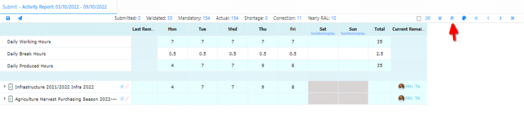
Collapse all collapses the view of the activity report to a macro level showing only the projects without their levels, milestones and tasks:
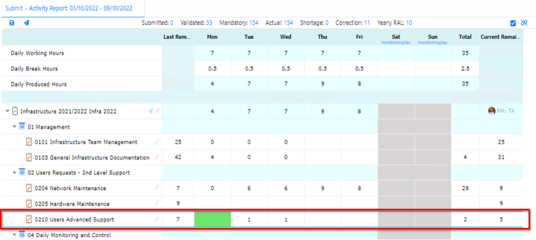
Add produced hours:
Click on produced hours tab.
Enter the number of working hours for a specific day.
The number will be reflected in the daily produced hours tab for the selected day.
The produced hours for this day will be deducted from the current remaining while the last remaining remains the same until the activity report is submitted and the project manager responsible on this project validates the activity report week.
The total is the addition of the total hours worked on a task per week.
The system prevent the user to add any hours if no attendance.
The team member cannot add produced hours more than the attendance.
Add Comment to Task:
Click on the add comment button (pen shape).
The comments screen opens.
Enter comment in the text field.
Click on apply.
Tasks with added comments will have their add comment buttons pop in pink color.
Add Comment to Project:
Click on the add comment button (pen shape).
The project comments screen which acts like a chat opens.
Enter comment in the text field.
Click on send.
Team member can enter another comment and send.
Team member click on apply.
Projects with added comments will have their add comment buttons pop in pink color.
Team members can update the last remaining per task upon some settings:
When “Update remaining by user when zero remaining only” is checked => the user can update the remaining hours only when the remaining becomes zero.
When “Mandatory comments for Updated remaining by user” is checked => the team member must add a comment when updating the hours on his task in case the left remaining is zero.
Edit Current Remaining:
Click on current remaining.
The current remaining field becomes green.
Enter the hours.
The update task remaining screen opens.
Enter comment.
Click on confirm
When a team member finish working on a task and the planned hours exceeded the produced hours, the team member has the option to set the current remaining hours for the task to be zero.
Set Remaining to Zero:
Select a task.
Click on set zero remaining.
The set zero remaining screen opens.
Click on confirm.
The task current remaining becomes zero.
A team member can edit his activity report and save his changes to later submit it.
Submit button is shown to team member in his activity report upon one of those two options:
Submit button is visible when team member’s week attendance is validated (all submitted and validated attendance weeks has the submit button option).
Submit button is visible when team member’s week attendance is submitted.
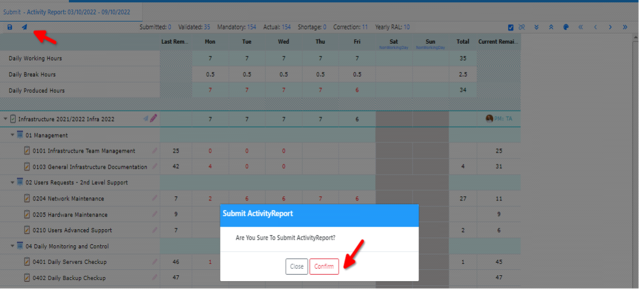
Submit Activity Report:
Click on submit button.
Submit activity report pop up screen opens.
Click on confirm.
The week is submitted for the project manager to validate it.
Activity report color changes when submitted.
Activity report color changes when project manager validate the submitted week.
Submit Activity Report by project:
Click on project submit button:
Repeat same steps as submit entire activity report.
Team member can go upcoming week were attendance is not validated and the submit button is not visible, edit his activity report save it and submit it later on.
Expenses are shown in the activity report if the option is checked in the activity report status options.
My Time Sheets => Validate
Activity Reports Validation is the process to validate the employee activity report with hours added to each task based on the attendance by weekly basis. Validation process must be configured on PLANTRACK Settings first.
The validation shows the team members for the designated project manager with their produced hours on tasks.
He is responsible to validate as well as their produced hours for the same week on task related to different project managers in order to also track their daily working hours.
The team members responsible for validating a project are set in validation process page, unless the project has, a validation process added on the level of the project from my projects page, multiple validations can be done.
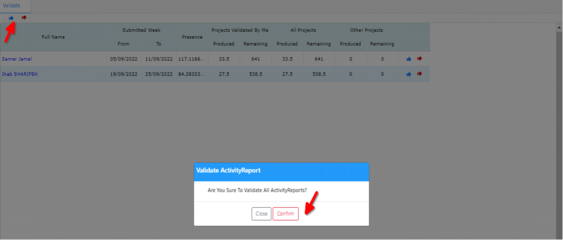
Validate All:
Click on the validate all button.
Validate activity report pop up opens.
Click on confirm.
All submitted activity reports for the designated project manager will be validated .
Activity report color change for the team members.
Reject All:
Click on the reject all button.
Reject activity report pop up opens.
Enter reason in text field.
Click on confirm.
All submitted activity reports for the designated project manager will be rejected.
Activity report color change for the team members.
Validate Team Member:
Click on the validate team member button.
Validate activity report team member pop up opens.
Click on confirm.
The submitted report for the selected team member will be validated.
Activity report color change for the team member.
Reject Team Member:
Click on the reject team member button.
Reject activity report team member pop up opens.
Enter reason.
Click on confirm.
The submitted report for the selected team member will be rejected.
Activity report color change for the team member.
Project manager can view multiple projects with their produced hours.
Project manager for a micro level insight can choose to view tasks produced hours as well.
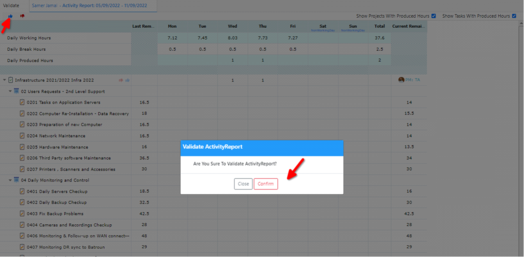
Validate Activity Report
Click on the validate all button.
Validate activity report pop up opens.
Click on confirm.
The submitted week activity report for all the projects belonging to the team member will be validated.
Team member will not show in the validate page.
Activity report color change for the team members.
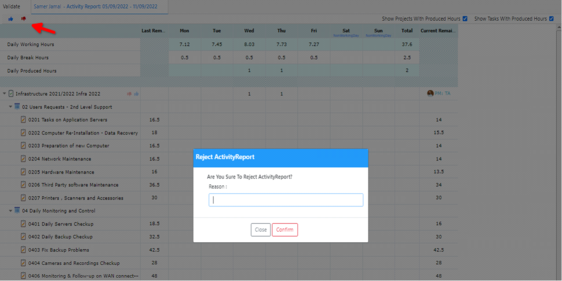
Reject Activity Report:
Click on the reject all button.
Reject activity report pop up opens.
Enter rejection reason.
Click on confirm.
The submitted week activity report for all the projects belonging to the team member will be rejected.
Team member will not show in the validate page.
Activity report color change for the team members.
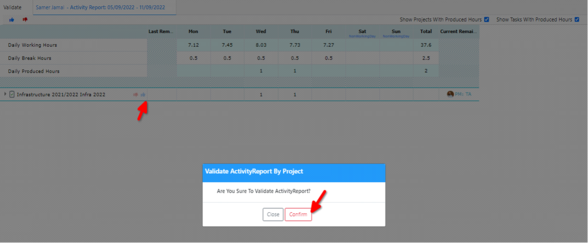
Validate Project:
Click on the validate project button.
Validate activity report by project pop up opens.
Click on confirm.
Only the submitted week activity report for the selected projects that belong to this team member will be validated while the rest of projects will remain under validation and the team member still shows in validate page.
The project color in the activity report for the team member changes while the rest of the project colors remains the same.
Reject Project:
Click on the validate project button.
Validate activity report by project pop up opens.
Click on confirm.
Only the submitted week activity report for the selected projects that belong to this team member will be validated while the rest of projects will remain under validation and the team member still shows in validate page.
The project color in the activity report for the team member changes while the rest of the project colors remains the same.


 contact@evolusys.com