Project model is a collection of tasks and milestones without hours and assigned team members.
Project Model can be used when a new project is created to create the list of tasks and milestones.
Tasks described in the model help steering the work towards the predefined goals and facilitating the control of work.
Every task can be made of zero or more sub-tasks.
Project models can be imported from already running projects.
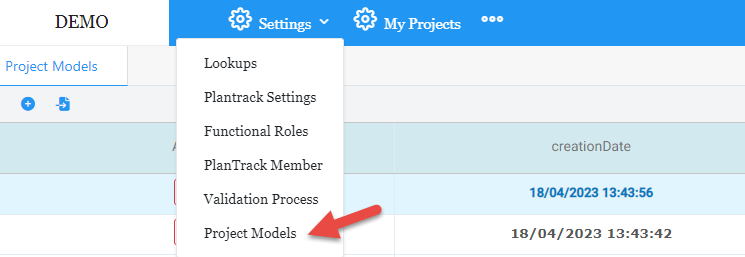
Settings => Project Models:
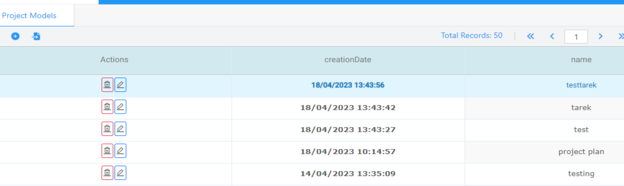
Grid with list of project models already created will open as following:
We have two ways to create a project Model:
Create new project model from scratch.
Import project form a list of projects already created.
Create new project model from scratch:
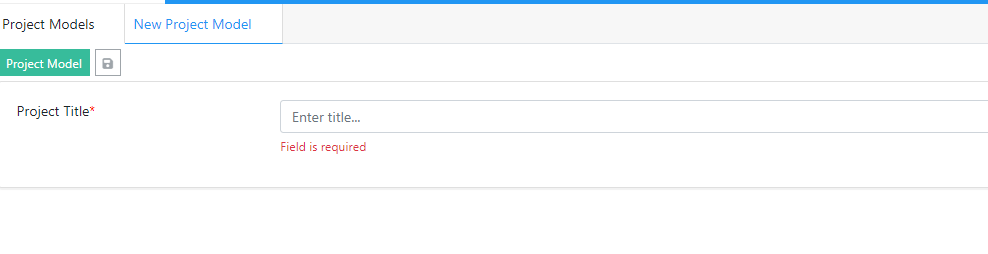
Click on create button in the project model grid screen the following page will open:
Add the project model name and click on the save button the new project model saved and the task tab will appear click on it and start creating levels , task and millstones And click on the save button , the new project model is created
Import project form a list of project already created:
In the project model grid Click on the import from project button
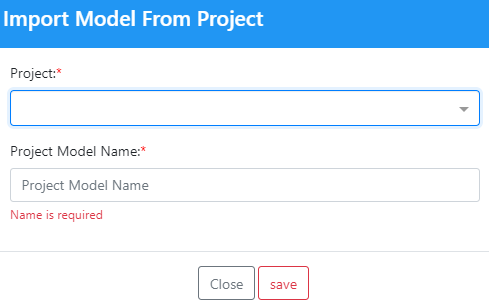
The following dialog will open:
Select a project from the list of the project and add the name of the project model.
Click on save button, a new project model is now created with the same tasks from the selected project.
Project model Grid Toolbar:
Total Records: represents the total number of projects available in the Grid list
< Page number >: represents the number of the current page. User can navigate by going to the previous or next page
Reset Layout: User can always reset to the default layout after resizing and replacing and hide/show the columns
Save Layout: User can save the layout after resizing and replacing and hide/show the columns
Export to EXCEL: User can export to Excel all records, current view or choose from - to index
Export to WORD: User can export to Word all records, current view or choose from - to index
Export to PDF: User can export to PDF all records, current view or choose from - to index
Auto-fit Columns: This feature fits all columns in the page without having to scroll horizontally to view them
Remove Filters: This feature removes all filters on all columns at the same time
Show / Hide Columns: User can show / hide columns to the My Requests list
Edit Project Model:
Click on the edit button change the project name, do to task tab modify add delete task, millstones level, click on the save button the project model is updated
Delete Project Model:
Select the project model and Click the on the delete button, the project model is deleted.
Tasks and milestone and level creation:
Click add the milestone or the task Icon and enter milestone or task name in Arabic, English, and French.
Click on apply, the task, milestone created.
Click on add level button, enter level name and click on apply:


 contact@evolusys.com