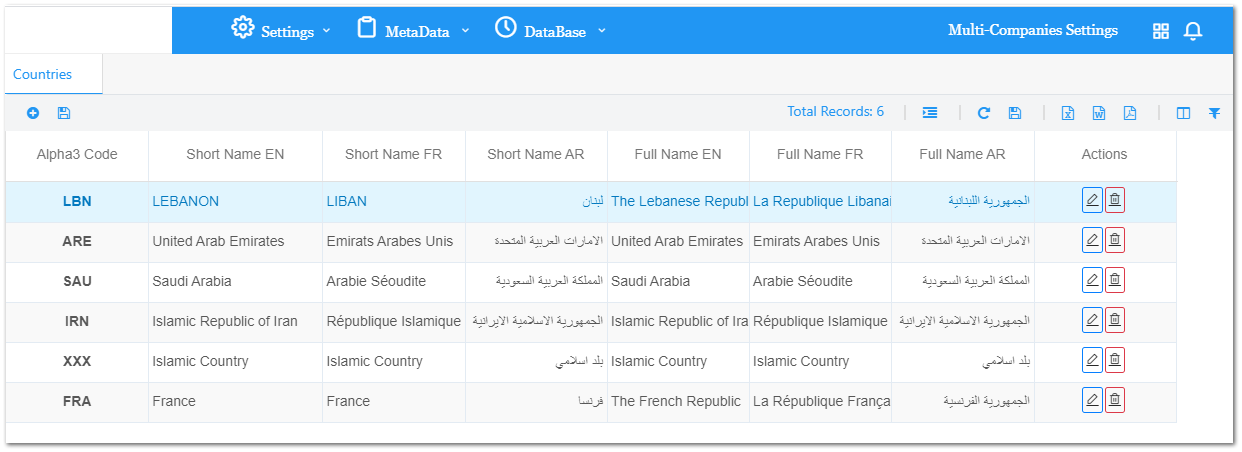
Multi-Companies Countries
This is the list of countries available in the system with all their information.
They are used in the Holidays section of the Attendance Module.
Add Country:
Click on Add Country at the top right of the screen
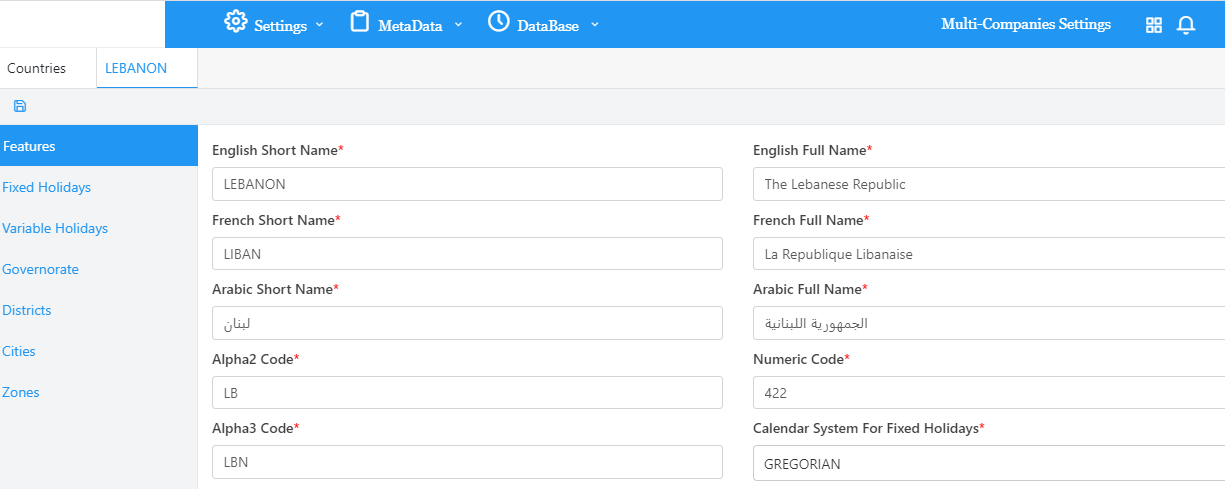
Features:
Enter all mandatory fields and choose a Calendar System for Fixed Holidays.
Fixed Holidays:
Click on the + button to add a fixed holiday.
Enter all mandatory fields and click on Add.
Click on the Edit button next to a holiday to edit the record.
Click on the Delete button next to a holiday to remove the record.
Variable Holidays:
Click on the + button to add a variable holiday.
Choose a Calendar System, Month and Day then enter all mandatory fields and click on Add.
Click on the Edit button next to a holiday to edit the record.
Click on the Delete button next to a holiday to remove the record.
Governorate:
Click on the + button to add a record.
Enter all mandatory fields and / or optional fields then click on Add.
Click on the Edit button next to a holiday to edit the record.
Click on the Delete button next to a holiday to remove the record.
District:
Choose a Governorate.
Click on the + button to add a record.
Enter all mandatory fields and click on Add.
Click on the Edit button next to a holiday to edit the record.
Click on the Delete button next to a holiday to remove the record.
City:
Choose a Governorate and a District.
Click on the + button to add a record.
Enter all mandatory fields and click on Add.
Click on the Edit button next to a holiday to edit the record.
Click on the Delete button next to a holiday to remove the record.
Zone:
Choose a Governorate, a District and a City.
Click on the + button to add a record.
Enter all mandatory fields and click on Add.
Click on the Edit button next to a holiday to edit the record.
Click on the Delete button next to a holiday to remove the record.
After finishing all steps, click on the save button.
Edit a Country
Click on the Edit button next to a country > The country tab opens.
Make the desired changes and click on Save.
Delete a Country
Click on the delete button next to a country.
A confirmation message appears > Click on confirm in order to delete the record.
If a country is used elsewhere in the system, user is not allowed to delete it and a notification message appears.


 contact@evolusys.com